Friday, 26 September 2014

Unit2.1 Task4 M1

Windows XP vs Mac OS. 

Features.
Windows XP
Mac OS
Machine and peripheral management.
The operating system controls the whole machine and all of the components inside it too. It also controls peripherals which are: keyboards, scanners, printers etc. Windows runs the monitor by adjusting the resolution. Windows also runs the mouse by setting the click speed.
The control of the computer components on a Mac are much the same as a Windows XP one. Nearly all of the devices need to be bought especially for Macs. Mac OS can run the keyboard by adjusting the input language. For any other devices like iPhone, Mac OS runs the screen by converting it to landscape mode.
Security.
The operating system for Windows XP makes sure that everything works correctly. It also makes sure there is no uncertified access that can harm your data. Windows also has security functions like: user accounts with password protection and firewall along with other functions.
The operating system for the Mac has got security features like sand boxing. Sand boxing makes it harder for a security hazard to take lead of an issue to affect the system. There is also verification for file sharing. The user has to put in his/her Apple ID and password to log in to a Mac for file sharing.
File Management.
The operating system for Windows XP needs to have file management. This is to show files, create new files, deleting and editing. Windows has a process called explorer.exe to control the file management.
The file management program that Mac OS uses is Finder. It is similar to Windows’ explorer.exe but it has an appropriate icon for every file type, the trash on the desktop and also tree navigation system.
Device Drivers.
Drivers are programs that tell the operating system what to do with and how to do them things with the particular device. An example of this is when you buy a new graphic card. To make the card work properly with all of its power and organisation you need to install the drivers supplied with the card.
The drivers on Mac are similar to those on Windows. The drivers are programs that control the devices. When the system is closed on the Mac OS you can’t really upgrade anything. Every driver that’s needed to run the computer is included in the system. When you want to install a new printer, you have to install a version of driver for Mac OS.


Features.
Windows XP
Mac OS
Ability to customize.
Accessibility features have been put in to Windows and these features are useful for users who have difficulties using their computer. These features can be either added later from separate Windows installation disks or installed during setup. To change the appearance and behaviour of Windows you can use the Control Panel and other built-in features. These include adjusting colours and sizes, sound volume etc. If you have difficulty using the normal keyboard layout, Dvorak keyboard layouts make the commonly typed characters more accessible.
It is quite difficult to customize your computer using a Mac because the things that you can do with it are rather limited. You need extra software to customise most of the desktop and features.There is practically nothing that a user can customise without the added software other than changing the background of the desktop. You can do plenty to customise your Mac when you have the software. System preferences allow you to adjust things. Examples of these include screen resolution, keyboard and mouse controls and sound settings etc. 
Support for connectivity of portable media.
Windows almost supports every type of portable media which have one of the connectors that fits into a Windows computer. Windows supports all media including ones that can be connected via USB ports such as phones and camera’s. It also supports Ethernet cables for internet, CD’s and DVD’s and your normal computer peripherals like keyboards and mouses.
The typical computer peripherals like computer mouses and keyboards are what the Mac supports. They also support things like headphones, USB ports for camera’s and phones and CD’s and DVD’s. This also includes Ethernet cables for internet.
Stability and reliability.
Windows offers more of a wider range of them. This means that Windows has more potential stability and reliability problems.
Mac OS offers fewer applications than Windows does. This means that Mac is potentially more stable and reliable than the Windows operating system.
Ease of management.
Windows OS is most likely the easiest to use, but it does depend on the user. The Windows operating system seems to be most popular with the customers this should mean that the the Windows operating system in easier to use. However it is a close call.
Ease of management generally depends on the user and what they are used. Mac OS is a newer kind of operating system than the Windows operating system is. This means that the younger generation may think that it is easier to use a Mac OS and the older generation could prefer the Windows OS.
Associated utilities.
I would say Windows is best however it really depends on the user and what they want their computer for. Windows is better for general uses rather than things such as graphic design and video editing.
Mac OS has a few more alternatives which basically covers everything. Certainly with the graphics design and video editing side of it.

There are many different applications for Mac that Windows have tried to replicate. These are things such as Mac's Dock, time machine, dash board and Cover flow. 

The Dock is the row of icons that is usually situated at the bottom of the screen. It makes it easier to access apps that are originally come with the Mac but you are able to add your own apps to it too. You can also add folders to the Dock. To access an app from the Dock you just click on the icon. It is sort of like shortcuts to apps.
 
The Windows equivalent is the XWindows Dock. This is basically a clone of the Mac Dock and does all the same things. The icons for the XWindows are also all fully customizable and you can also change the skins of the dock too. There is a 3D mode that looks like the original Mac look. It also has some preinstalled plugins but also supports other plugins too. An example of this is the Container plugin and this allows you to organise your items into groups. It also makes the dock look better.


Mac's Time Machine is a built-in backup software application that works with your Mac and an external drive. When the drive is connected, and the Time Machine is told to use it, the Time machine automatically backs up your entire Mac which includes system files, applications, accounts, preferences, email messages, music, photos, movies, and documents. Basically everything. However, the Time Machine does not only keep a spare copy of every file, it also remembers how your system was on any given day. This means that you can go back to your Mac as it was in the past. Time Machine keeps hourly backups for the past 24 hours, daily backups for the past month and weekly backups until your backup drive is full.
The windows equivalent to this is the RollBack Rx. However, Rollback is actually better than Mac's Time Machine in a few different ways. One of these is that you can use Rollback as a full-system reset. Which means that you can go to an exact point in time when a snapshot was taken. If the file had been deleted or gets corrupted and you would like to get back that file from earlier, you don't need to make your entire computer go to that time and then return to the latest snapshot. With RollBack you can just browse all the files that existed on your machine and drag-and-drop any file or folder you'd like to your desktop. 


The Mac dashboard gives  the access to fun and functional, mini applications called widgets. It includes widgets for some Mac apps, like Contacts and Calendar. These widgets give an easier, quicker way to access contacts and events without having to open up an app. It saves time and patience. More widgets are available to download to the Dashboard and its even possible to create your own. 


The Windows equivalent to this is the XWidget. It is Windows version of Mac Dashboard and it provides easy customisation with many features. You are able to get widgets and install them on your computer easily and quickly. You can also create new widgets like in the Mac OS X version. All the installed/created widgets are on the desktop and are live behind open windows. The widgets stay there even when the 'show desktop' button is clicked. You can easily rearrange the widgets just by dragging and dropping them and the XWidget Dashboard mode can be directly reached just by double clicking the middle button of the mouse. The Dashboard version has a 'Plus' button that is used to add or remove widgets and you are able to toggle between desktop and dashboard mode easily and quickly.


Thursday, 18 September 2014

Unit2.1 task3 P3

The purpose of different software utilities. 

Software utilities are a system software that is to help configure, analyze and maintain the computer. 

Firewalls.

A firewall is a program that filters information coming to your computer from the internet connection. If the information is bad for your computer it gets flagged by the firewalls filters and it gets stopped from coming into your computer. Firewalls can also control what information goes from your computer to the internet connection. For example stopping someone from going on certain websites. Most firewalls also have a reporting system that lets you know if your network is getting broke into and who is trying to do it. 

Clean up tools for removal of cookies.


Cookies include information of what websites have got about you and gets kept on your computer as small files. A lot of these files are harmless but some of the contain information about you that is personal. This could include where you have been, what you done and any personal information that you have  put on the site. To prevent this from happening you could clear your browsing data on the network you are on. This stops websites taking any information about you. 


Defragmentation. 

Defragmentation is when you put files back in the right place. To do this you organize them so they are closer to the beginning of the hard drive and this improves the files start and read time. In the process of moving the files defragmentation reduces the amount of fragmentation. Fragmentation is the storing of a file in different places of memory in a hard disk. Defragmentation usually improves retrieval time and also the computer whole performance. 


Drive formatting.

There are essentially two forms of drive formatting. These are low-level formatting and high-level formatting. Low-level formatting is basically the layout of the drive to the computer. This helps the computer to keep track of the saved data. High-level formatting is an operation that takes place when a hard drive is formatted. It creates an empty file structure on the hard drive. This lets the computer know the drive is empty which makes it ready for more data. Drive formatting is basically the preparation of the hard drive for initial use and can also create one/more file added file systems. 


Saturday, 13 September 2014

unit2.1 task2 P2


The Purpose of Operating Systems. 

An operating system is software that reinforces a computers primary functions. It also manages computer hardware and software resources and provides normal services for computer programs. An operating system is an important component of the system software in the computer system. Programs usually require an operating system to work.
Five common operating systems used are Ubuntu, Android, Mac OS X, IOS and Windows. 

Machine and peripheral management. 
Machine & peripheral management
Peripheral management controls peripheral devices. It does this by sending them commands in a way they can understand (their own language). A driver is the software routine that knows how to deal with each device. The device driver is installed into the system when the new peripheral is added. The operating system deals with the computer's peripherals using the software drivers for the devices. The operating systems controls the whole machine and all the components there and this includes peripherals such as keyboards, mouses and printers. 

Security.
McAfee Security.
Security for computers includes protecting the systems main things such as memory and important operating systems and programmes. It also protect personal things that are stored on the computer too. If a computer is ran without security it is more likely to be hacked and also get viruses. Security can be anything between passwords to having a security programme such as McAfee. 


File management.
File Management.
File management can be said to be manipulation of documents in a file stored on a computer. It is a system software and it acts as a master control for all activity that happens within the computer system. The system is what organises and keeps track of the files. files are managed on their location and storage device. File management gives a way to open and save files into folders and makes it easier to organise your work.


Device drivers.
Windows Device Driver.
A device driver is a program on the computer that is installed to operate and also control specific devices that are plugged into the computer. An example of these devices could be a printer or a keyboard. The device driver essentially turns the more general input and output orders of the operating system into messages that the device can understand. A device driver can also simplify programming. 

Friday, 12 September 2014

Unit2.1 Task1 P1


Internal system unit components. 
Processor

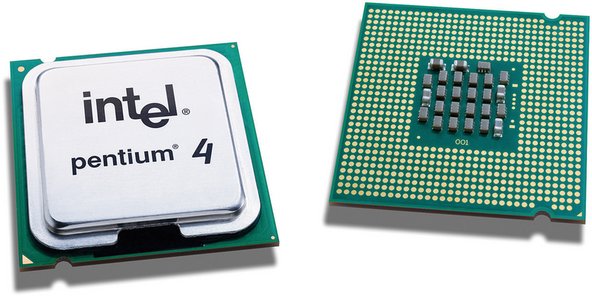
A processor is the hardware in a computer that carries out the instructions of a program by performing the basic input/output operations of the system. The functions of a processor is is to perform stored instructions which is called a program. The instructions are kept in the computer memory. There are four main steps that nearly all processors use in their operation. These are fetch, decode, execute, and write back.


Motherboard


The Motherboard is the main component in the computer which connects each hardware to its processor. This includes the central processing unit, the memory and also the connectors for the input and output devices. 


BIOS


The basic input and output system is a set of routines that boots the operating system and can also set up the hardware. BIOS tests the system and prepares the computer for operation based on hardware and configuration settings of both the manufacturer and the user. 


Power supply 


The power supply is an internal hardware component used to supply the component of the computer with power. The power supply changes the current line from your home to a different current needed by the computer. 


Heat sink and fan 


Most computers have heat sinks. Heat sinks help the CPU cool and prevents it from over heating. Sometimes the heat sink can over heat too. To prevent this a fan is used. This keeps both the CPU and the heat sink at the right temperature. The fan transfers cool air across the heat sink, pushing hot air out of the computer.


Hard drive 


The hard drive stores all data. It keeps the hard disk, where all files and folders are located. Data is stored on a pile of disks that are inside an encasement. The disks spin really fast so the data can be accessed straight away for anywhere on the hard drive. 


Configuration


The configuration are the technical specifications of a computer. It is the choice of hardware, software, firmware, and documentation. 


Ports 


There are two different types of ports. The first is an Internet port. This is a number that shows what kind of protocol a server on the Internet is using. For example, web servers are usually on port 80.
The second type is a hardware port. This can be any of the ports that are on the back of a computer where devices are attached. These can be things like keyboards and printers.The most common ports are USB, Firewire and Ethernet. 


USB 


USB stands for Universal Serial Bus. It is used to connect devices such as keyboards, game controllers,printers, scanners and more. USB is faster than parallel and serial ports. When a computer sends data to a printer or an other device using a parallel port, it sends 8 bits of data at a time. These 8 bits are sent parallel to each other. The same eight bits could be being transmitted serially and they will be all in one row through a serial port


RAM 


RAM stands for Random Access Memory. It is made up of small memory chips that create a memory module. These are installed in to the RAM slots on the motherboard of a computer. When a programme is opened it gets loaded from the hard drive in to the RAM. This happens because the reading data from the RAM is faster that from the hard drive. Running the programme from the RAM of the computer allows them to run with no lag. The more RAM the computer has the more data can be loaded from the hard drive and this can speed up your computer. 


ROM


This stands for Read-Only Memory. This is a memory containing instructions that the computer uses when is boots before the system loads. In PC's the instructions are are read from a programme in the ROM called the BIOS. 


Cache


Cache stores information that was recently used so that it can be accessed faster at another time. Computers have different types of caching so that it can run faster which improves performance. Common caches are browser cache, dick cache and a processor cache. 


Video Cards


Video cards give the CPU a break and help it run more smoothly by processing the graphics part of the processing load. It can help almost an program run more smoothly. The difference in performance can be more noticeable in image editing applications and also 3D games. Video Cards can speed up 2D and 3D graphics rendering. Programs like photo editors and web browsers benefit from a video cards 2D acceleration. However CAD design programs and video games benefit from a video cards 3D acceleration. Some programs rely completely on the video card and will not run if it isn't installed. 


Peripherals 


Printer


A printer is a device that transfers text and graphic information from a computer to paper. There are different kinds of printers and these are dot-matrix, inkjet and laser. 
The dot-matrix printer strikes the page one line at a time. The inkjet printer sprays ink at the paper at close range as it rolls past. The laser printer uses a laser beam reflected from a mirror to attract ink to the paper as the sheet rolls by on a drum. 


Scanner


A scanner is a device that captures images from photographic prints and similar sources for computer editing and display. Scanners can come in hand-held, feed-in, and flatbed types and for scanning black-and-white or colour. High resolution scanners are used for scanning high-resolution printing, but low resolution scanners are used for capturing images for computer display. Scanners usually come with software like Adobe's Photoshop product that lets you re-size and modify a captured image. 


Twisted pair cabling


This is a type of wiring that have two separate insulated wires twisted together. There are two types that are shielded and unshielded. The shielded twisted pair has a wire mesh surrounding the wires that protects the transmission. The shielded twisted pair is used for older telephone networks and network and data communications. This reduces external interference. The unshielded twisted pair do not have a wire mesh to protect the wires.


Backing storage 


Pen Drive 
 

A pen drive is a portable USB device for storing and transferring audio, video, and data files from a computer. As long as the desktop has a USB port, and the pen drive works with the operating system, it should be easy to move the data from the hard drive to the device. If the pen drive is inserted one end of the drive into the USB port on a desktop or laptop it activates it. Once the drive is enabled, files can be copied and pasted into the memory.
Hard Drive 

A hard drive is the computer's main storage device that constantly stores all data on the computer. It has one or more hard drive platters inside of an air sealed casing. Hard drives are in an inside drive at the front of the computer. They connect to the motherboard using either an ATA, SCSI, or SATA cable and power cable. Data sent to and from the hard drive is simplified by the disk controller. This tells the hard drive what to do and how to move the things inside the drive. When the operating system needs to read and write data, it examines the hard drives File Allocation Table (FAT) to decide file location and available areas. 


These components communicate in different ways. The main way they communicate is through the connections in the motherboard. These are SATA connectors and IDE connectors. 
The components that use SATA connectors connect using cables to storage devices. These include disk drives, solid-state drives and optical drives.
IDE connectors are not really found in computers today but they were used to connect to olders hard drives. Many optical drives supported IDE conectors too.